

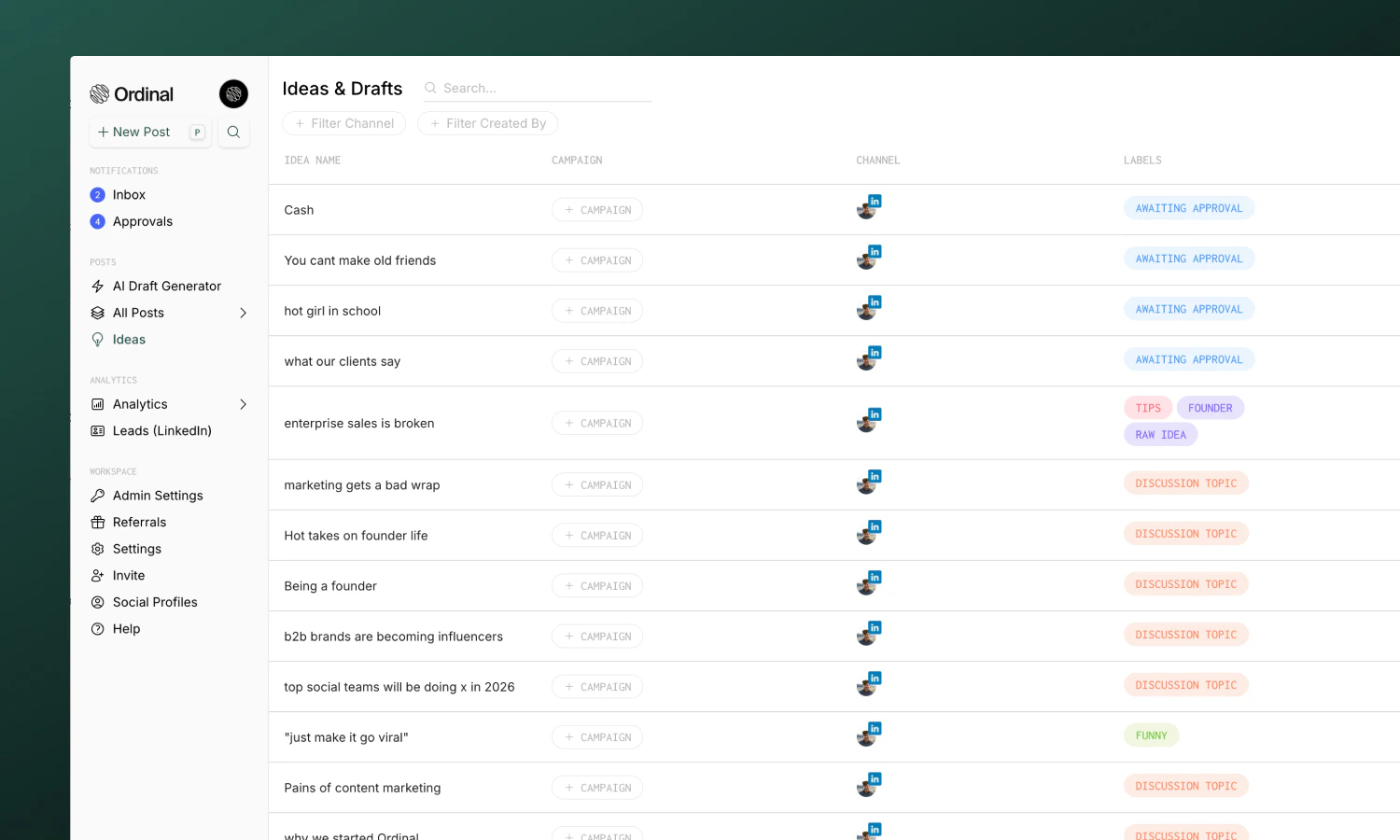
Creating ideas
- Go to Ideas in the sidebar
- Click on the
+button or use the keyboard shortcutito create a new idea - Select a channel and write your content
Moving ideas to calendar
When you’re ready to schedule an idea:- Open the idea from your backlog
- Click Add to Calendar. This will automatically move your idea to the Calendar for today’s date.
- Make any edits and schedule the post.
Tracking approval status
The Ideas & Drafts table shows approval progress for every idea, so you can see which drafts are cleared to schedule without opening each one. The Approvers column shows:- A dash when no approval has been requested
- A pill with approved vs. total reviewers (for example,
1/3) when approvals are in progress. The pill turns yellow when a blocking approval is still pending. - Hover over the pill to see each reviewer and their status
Learn more about requesting and reviewing approvals in Approvals.
Moving posts to ideas
Move a post on your Calendar back to your ideas backlog:- Open the post
- Click the Status in the sidebar
- Select Idea and confirm
- The post moves back to the Ideas tab and no longer displays in the Calendar view
Learn more
Drafting Posts
Create and compose content.
Labels
Organize ideas and posts.